How to fix brother printer not turning on? This is a common problem that many Brother printer users face. It can be frustrating when your printer suddenly stops working, leaving you unable to print important documents or photos. But don’t worry, in most cases, the problem can be easily fixed with a few simple troubleshooting steps.
This guide will walk you through the most common causes of a Brother printer not turning on and provide step-by-step solutions to get your printer up and running again. From checking power connections to examining internal components, we’ll cover all the essential troubleshooting techniques.
Troubleshooting Power Issues
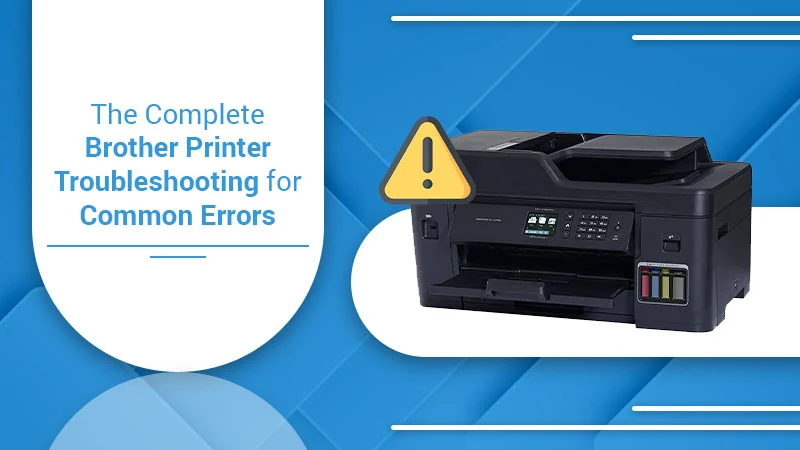
A Brother printer that won’t turn on can be frustrating, but the problem often lies in a simple power issue. Here’s how to troubleshoot these common problems.
Checking Power Connections
The first step is to verify that the printer is receiving power. Start by examining the power cord, ensuring it’s securely plugged into both the printer and the wall outlet. Look for any signs of damage, such as frayed wires or broken prongs.
If you notice any damage, replace the cord immediately.
Testing the Power Outlet
Next, check the power outlet itself. Try plugging in another device, such as a lamp or phone charger, to confirm it’s working. If the other device powers on, the outlet is likely fine, and the issue might be with the printer or its power cord.
Verifying the Power Switch
Finally, make sure the printer’s power switch is in the “on” position. It might seem obvious, but sometimes the switch can be accidentally toggled to the “off” position.
Obtain recommendations related to Choose Life Choose Words that can assist you today.
Resetting the Printer
If you’ve checked all the connections and the printer still won’t turn on, try resetting it. This involves unplugging the printer from the power outlet and leaving it unplugged for several minutes. This allows the printer to fully discharge any residual electricity and reset its internal systems.
After waiting, plug the printer back in and try turning it on.
Checking for Physical Damage
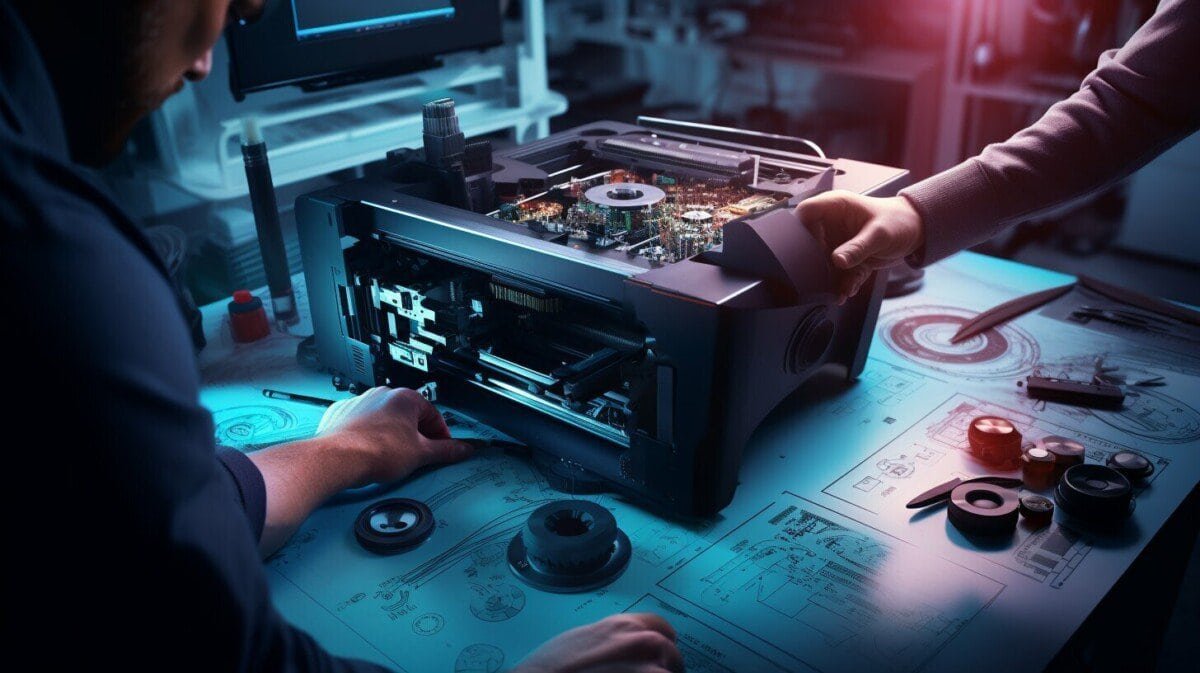
Sometimes, the simplest solution is the most overlooked. Before diving into complex troubleshooting steps, take a moment to visually inspect your Brother printer for any signs of physical damage. A broken part or a loose connection can easily prevent your printer from turning on.
Inspecting the Printer for Damage
Start by carefully examining the exterior of your printer. Look for any obvious signs of damage, such as cracks, dents, or broken parts. Pay close attention to the power cord, USB cable, and paper tray. These areas are particularly susceptible to damage due to their frequent use.
- Power Cord:Check the power cord for any fraying, cuts, or loose connections. Make sure the plug is securely inserted into the printer and the electrical outlet.
- USB Cable:If your printer uses a USB cable, inspect it for any signs of damage, such as bending or fraying. Ensure the cable is securely connected to both the printer and your computer.
- Paper Tray:Examine the paper tray for any obstructions or damage. Make sure the tray is properly inserted and that the paper is loaded correctly.
Handling Potential Damage
If you discover any damage, it is crucial to handle it with care. Do not attempt to fix any broken parts yourself, as this could worsen the damage. Instead, contact Brother customer support or a qualified technician for assistance. For loose connections, try gently re-inserting the cables or components.
If the connection remains loose, it might indicate a more serious issue that requires professional attention.
Verifying Printer Drivers and Software

Printer drivers are essential software programs that enable your computer to communicate with your printer. They act as a bridge, translating instructions from your computer into a language that the printer understands. Outdated or incompatible drivers can lead to various issues, including the printer not turning on.
Checking for Driver Updates
Outdated printer drivers can cause compatibility issues, preventing your printer from functioning correctly. To ensure optimal performance, you should regularly check for and install the latest driver updates.
- Windows: Go to the “Device Manager” by searching for it in the Windows search bar. Expand the “Printers” category and right-click on your printer’s name. Select “Update Driver” and follow the on-screen instructions. You can also visit the manufacturer’s website for the latest drivers.
- macOS: Open “System Preferences” and click on “Printers & Scanners.” Select your printer and click on the “Options & Supplies” button. Click on the “Driver” tab and choose “Update” to install the latest driver.
Reinstalling Printer Software
If updating drivers doesn’t resolve the issue, reinstalling the printer software can often fix problems related to driver corruption or incorrect settings.
- Uninstall the Existing Software: Go to “Control Panel” (Windows) or “Applications” (macOS) and locate the printer software. Uninstall it completely.
- Download and Install the Latest Software: Visit the manufacturer’s website and download the latest printer software for your specific model. Follow the installation instructions carefully.
Examining the Printer’s Internal Components
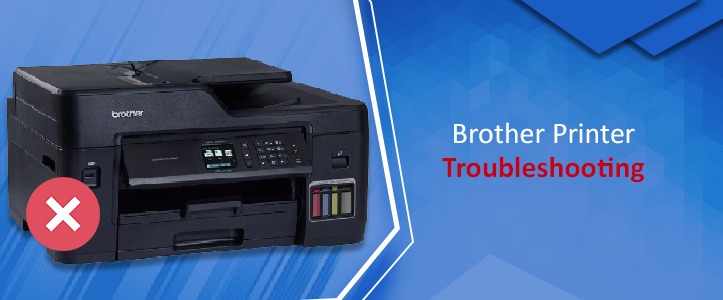
If the printer’s power issues are ruled out and no physical damage is evident, the next step involves delving into the printer’s internal workings. Examining the internal components can help pinpoint the source of the problem and guide you towards the appropriate solution.To access the printer’s internal components, you need to open the printer’s case.
This process varies depending on the printer model, so refer to your printer’s manual for specific instructions. Remember to unplug the printer before opening it to prevent electric shocks.
Inspecting Internal Components
Inspecting the internal components can reveal signs of malfunction. Here’s a list of potential internal components to check:
- Printhead: The printhead is responsible for dispensing ink onto the paper. Check for clogs, dried ink, or any physical damage. A clogged printhead can prevent the printer from turning on or printing properly.
- Ink Cartridges: Ensure the ink cartridges are properly installed and that they have sufficient ink levels. Empty or malfunctioning ink cartridges can hinder the printer’s operation.
- Paper Feed Mechanism: Examine the paper feed mechanism for any obstructions or damage. A jammed paper feed mechanism can prevent the printer from turning on or feeding paper correctly.
- Other Components: Inspect other internal components like the motor, belts, and gears for signs of wear, damage, or obstruction. These components play crucial roles in the printer’s operation.
Testing the Printer’s Connectivity
A printer that doesn’t turn on might be facing a connectivity issue. This means the printer is not communicating with your computer or network properly. Before proceeding with any further troubleshooting, it’s essential to ensure the printer is connected correctly.
Testing USB Connectivity
If your printer is connected via USB, the first step is to ensure the USB cable is securely plugged into both the printer and your computer.
- Try a different USB port on your computer. Sometimes, a specific USB port might be malfunctioning.
- Ensure the USB cable is not damaged. Inspect the cable for any signs of wear, tears, or bends.
- Try a different USB cable.
If the existing cable is damaged, using a new one can resolve the connectivity issue.
Testing Wireless Connectivity, How to fix brother printer not turning on
If your printer is connected wirelessly, verifying the connection is crucial.
- Make sure the printer is turned on and within range of your wireless router.
- Confirm the printer is connected to the correct wireless network.
- Check the signal strength of the wireless connection. A weak signal can cause connectivity issues.
- If your router has a WPS button, try using it to connect the printer. WPS (Wi-Fi Protected Setup) allows you to connect devices to your network without entering the password.
Troubleshooting Connectivity Issues
If you’ve verified the connection but the printer still doesn’t respond, try these steps:
- Restart your computer and printer. This can often resolve temporary connectivity issues.
- If you’re using a wireless connection, try connecting the printer directly to your computer via USB. This will help you isolate whether the problem lies with the wireless connection or the printer itself.
Find out further about the benefits of printer fix near me that can provide significant benefits.
- Check for any network conflicts. If multiple devices are connected to the same network, they might be interfering with each other.
- If you’re using a wireless connection, try connecting the printer to a different network. This can help determine if the issue is with your current network or the printer itself.
- If you’re using a USB connection, try connecting the printer to a different computer. This will help you determine if the issue is with your computer or the printer itself.
Identifying and Resolving Software Conflicts
Sometimes, the culprit behind your printer’s refusal to power on might not be a physical issue but rather a software conflict. Outdated or incompatible software can interfere with the printer’s operation, leading to unexpected behavior, including the inability to turn on.
Identifying Software Conflicts
To identify potential software conflicts, you can check for outdated or incompatible software. Begin by reviewing the printer’s documentation or manufacturer’s website to confirm the minimum system requirements and recommended software versions. Outdated or incompatible drivers or software can cause conflicts, hindering the printer’s ability to function properly.
You can also check your operating system’s event logs for error messages related to the printer. These logs can provide valuable insights into software conflicts that may be hindering the printer’s operation.
Resolving Software Conflicts
If you suspect software conflicts are the root cause, you can try uninstalling and reinstalling the printer software. This process will remove any corrupted or conflicting files and allow you to install the latest version of the software. You can also try updating the printer’s drivers to the latest version.
If you have multiple printers connected to your computer, try disconnecting all but the problematic printer. This can help isolate the issue and determine if another printer is interfering with the one you are trying to use.
Checking for Paper Jams
A paper jam can prevent your Brother printer from turning on. This occurs when paper gets stuck inside the printer, preventing it from operating correctly. Identifying and clearing a paper jam is crucial for restoring functionality.
Identifying a Paper Jam
Paper jams can manifest in various ways. The most common symptom is a printer that refuses to turn on or makes unusual noises. The printer’s control panel may display an error message indicating a paper jam. Additionally, you might notice that paper is visible or partially stuck in the printer’s paper tray or output slot.
Clearing a Paper Jam
To clear a paper jam, follow these steps:
- Turn off the printerand unplug it from the power outlet.
- Open the printer’s cover, carefully removing any visible paper jams.
- Inspect the printer’s paper pathfor any remaining paper fragments. You may need to use a flashlight to see hidden areas.
- Gently remove any stuck paper, taking care not to tear it. If the paper tears, remove as much as possible and use tweezers to retrieve the remaining pieces.
- Close the printer coverand reconnect the power cable.
- Turn the printer back onand try printing a test page.
Preventing Future Paper Jams
To minimize the risk of future paper jams, consider these preventative measures:
- Use high-quality paperthat is compatible with your printer.
- Load paper correctly, ensuring it’s aligned with the guides and not overloaded.
- Avoid using crumpled or torn paper.
- Regularly clean the printer’s rollersto remove dust and debris that can cause jams.
- Keep the printer in a clean and dust-free environment.
Troubleshooting Ink Cartridge Issues: How To Fix Brother Printer Not Turning On
Ink cartridges are an essential part of your Brother printer’s operation. If your printer is not turning on, it’s possible that the ink cartridges are the culprit. Faulty or empty cartridges can prevent the printer from powering up.
Checking Ink Levels and Cartridge Installation
To check the ink levels, you can use the printer’s control panel or the printer software installed on your computer. If the ink levels are low, you may need to replace the cartridges. Ensure the cartridges are properly installed.
- Open the printer’s cover.
- Carefully remove the old cartridges.
- Insert the new cartridges, making sure they are properly aligned.
- Close the printer cover.
Replacing Ink Cartridges
If the ink levels are low or the cartridges are faulty, you’ll need to replace them. Here’s how:
- Purchase genuine Brother ink cartridges from a reputable retailer. Using non-genuine cartridges can damage your printer.
- Turn off the printer and unplug it from the power outlet.
- Open the printer’s cover.
- Gently remove the old cartridges.
- Insert the new cartridges, making sure they are properly aligned.
- Close the printer cover.
- Plug the printer back into the power outlet and turn it on.
Contacting Brother Support
If you’ve exhausted all the troubleshooting steps Artikeld in this guide and your Brother printer still isn’t turning on, it’s time to reach out to Brother Support for professional assistance. They have the expertise to diagnose and resolve complex issues that might be beyond the scope of a typical user’s knowledge.
Contacting Brother Support
You can contact Brother Support through various channels:
- Phone:Call their customer service hotline, which you can find on their website. Be prepared to provide your printer model number, serial number, and a brief description of the issue.
- Email:Use the contact form on their website to send a detailed email explaining your printer problem. Include all relevant information, such as the printer model, serial number, and any error messages you’ve encountered.
- Live Chat:If available, utilize their live chat feature on their website to connect with a support representative in real-time. This provides immediate assistance and allows for a quick back-and-forth exchange of information.
- Online Support Forum:Visit their online support forum to see if others have experienced similar issues and find potential solutions. You can also post your problem and seek help from the community.
Providing Information to Brother Support
To ensure efficient troubleshooting, it’s crucial to provide Brother Support with as much information as possible. This will help them quickly identify the cause of the problem and recommend appropriate solutions. Here’s a list of essential information to have ready:
- Printer Model and Serial Number:These numbers are typically found on a sticker on the back or bottom of your printer. They help Brother Support identify the specific model and its features.
- Detailed Description of the Issue:Be as specific as possible about the problem you’re experiencing. For example, describe the exact symptoms, such as the printer not turning on at all, making strange noises, or displaying error messages.
- Troubleshooting Steps Already Taken:List any troubleshooting steps you’ve already tried, including the results of each step. This helps Brother Support avoid redundant steps and focus on the most relevant solutions.
- Operating System and Software Versions:Provide the operating system you’re using (e.g., Windows 10, macOS Monterey) and the versions of any relevant software, such as the printer driver. This helps Brother Support identify potential compatibility issues.
- Error Messages:If you’ve encountered any error messages, write down the exact text of the message. This can provide valuable clues about the underlying problem.
Preventive Maintenance Tips
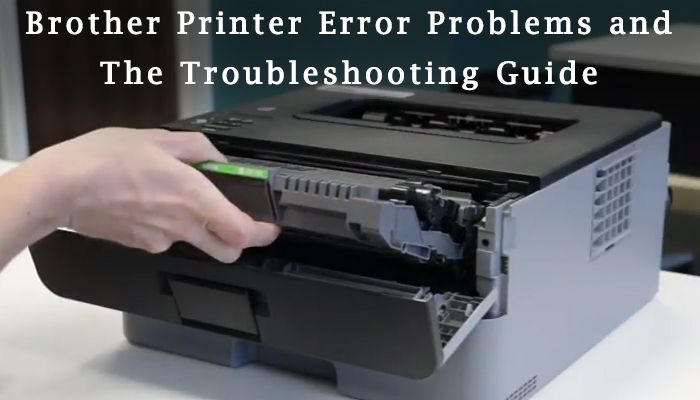
Preventive maintenance is crucial for ensuring your Brother printer operates smoothly and delivers high-quality prints. Regular cleaning and maintenance tasks can help extend the lifespan of your printer, reduce the risk of malfunctions, and minimize the need for costly repairs.
Importance of Regular Cleaning and Maintenance
Regular cleaning and maintenance play a vital role in keeping your Brother printer functioning optimally. Dust, debris, and ink residue can accumulate over time, leading to print quality issues, paper jams, and even hardware failures. By implementing a preventive maintenance routine, you can minimize these problems and ensure your printer continues to deliver reliable performance.
Cleaning the Printhead
The printhead is a crucial component of your Brother printer responsible for dispensing ink onto the paper. Over time, ink can dry and clog the printhead nozzles, resulting in streaks, faded prints, or even complete printhead failure. Cleaning the printhead regularly helps prevent these issues and maintain print quality.
- Use the Printer’s Cleaning Function:Most Brother printers have a built-in cleaning function that can help clear clogged nozzles. Refer to your printer’s user manual for instructions on accessing and using this feature.
- Manual Cleaning:If the built-in cleaning function doesn’t resolve the issue, you can manually clean the printhead using a cotton swab and distilled water. Carefully dampen the cotton swab and gently wipe the printhead nozzles. Avoid applying excessive pressure, as this could damage the printhead.
Replacing Ink Cartridges
Ink cartridges are consumable items that eventually run out of ink. When the ink level is low, the printer may display an error message or produce faded prints. It’s essential to replace empty or low ink cartridges promptly to avoid print quality issues and prevent damage to the printer.
- Monitor Ink Levels:Regularly check the ink levels on your printer’s display or through the printer software.
- Use Genuine Ink Cartridges:Using genuine Brother ink cartridges ensures optimal print quality and compatibility with your printer. Non-genuine cartridges may cause print quality issues or damage your printer.
- Proper Cartridge Installation:When installing new ink cartridges, ensure they are properly aligned and seated securely in the printer.
Cleaning the Paper Feed Tray
The paper feed tray is where you load paper into the printer. Over time, dust, paper fibers, and other debris can accumulate in the tray, causing paper jams or feeding issues. Cleaning the paper feed tray regularly helps prevent these problems.
- Remove and Clean the Tray:Carefully remove the paper feed tray from the printer and empty it.
- Clean the Tray Surface:Use a damp cloth or a vacuum cleaner with a brush attachment to remove any dust or debris from the tray surface.
- Check for Obstructions:Inspect the tray for any obstructions, such as paper scraps or foreign objects, and remove them.
Cleaning the Scanner Glass
The scanner glass is used to scan documents and photos. Dust, fingerprints, or smudges on the glass can affect the quality of scans. Cleaning the scanner glass regularly ensures clear and accurate scans.
- Use a Microfiber Cloth:Use a clean, microfiber cloth to wipe the scanner glass gently.
- Avoid Harsh Cleaners:Avoid using harsh cleaners or abrasive materials that could scratch the glass.
FAQ Summary
What are the most common reasons why my Brother printer won’t turn on?
The most common reasons include power issues, physical damage, software conflicts, paper jams, and ink cartridge problems.
Can I fix a Brother printer not turning on myself?
Yes, in many cases, you can fix the problem yourself by following the troubleshooting steps Artikeld in this guide.
What should I do if my Brother printer still won’t turn on after troubleshooting?
If you’ve tried all the troubleshooting steps and your printer still won’t turn on, contact Brother support for assistance.
