“How to fix another computer is using the printer” is a common tech frustration. Imagine this: You sit down to print, only to find your printer is busy, even though you haven’t sent anything to print. The culprit?
Another computer might be hogging your printer, causing delays and headaches. This guide will help you diagnose and resolve these frustrating situations, helping you regain control over your printer and get your documents printed smoothly.
From identifying the source of the problem to troubleshooting printer settings, network configurations, and software conflicts, this guide will provide step-by-step instructions and helpful tips to reclaim your printer’s freedom. Whether it’s a shared printer on your home network or a printer in a small office environment, this guide will walk you through the most common scenarios and offer solutions to get your printer back in your hands.
Identifying the Issue
So, you’re trying to print something and your printer’s acting up. You might be thinking, “Man, this thing’s possessed!” But hold your horses, mate. Before you start chucking ink cartridges at the wall, let’s figure out what’s really going on.The first thing to check is whether another computer is hogging your printer.
It’s like trying to use the same phone line as your mumsomeone’s gotta give! There are a few tell-tale signs that someone else might be using your printer.
Signs of Another Computer Using the Printer
It’s pretty easy to spot if another computer’s using your printer. Think of it like a detective’s hunch
you just know something’s off. Here’s what to look out for
- The printer is busy:This is the most obvious sign. If you try to print something and get a message saying “printer busy” or “printer offline,” then another computer is probably using it.
- The printer light is flashing:This could indicate that the printer is in use. If you’re not the one printing, then someone else might be.
- The printer is making noise:If you hear the printer whirring away, but you haven’t sent anything to print, it’s a good bet that someone else is using it.
Troubleshooting Steps to Determine if the Printer is Actually Being Used by Another Computer
Okay, so you’ve got a hunch that another computer is using your printer. Now it’s time to put on your detective hat and investigate. Here’s what you can do:
- Check the printer’s status:Most printers have a status light or display that will show you if the printer is busy. If it says “busy” or “offline,” then someone else is probably using it.
- Check the printer’s properties:On your computer, go to the printer’s properties and check the “status” tab. This will tell you if the printer is currently in use.
- Look for other computers connected to the printer:If you’re using a wired printer, check to see if any other computers are connected to it. If you’re using a wireless printer, check the list of connected devices on your router.
Checking Printer Settings

Right, so you’ve checked the basics, but your printer’s still playing up? Time to dig into the settings, mate. It’s like giving your printer a proper tune-up, see? You’ll be surprised how much can be sorted out just by tweaking a few things.
Default Printer Settings
The default printer is the one your computer uses automatically when you print something. If it’s set wrong, that’s your problem right there. Here’s how to check and change it:
- Open the Start Menuand type “Printers”.
- Click on “Devices and Printers”.
- Right-click on the printer you want to use and select “Set as default printer”.
It’s a simple fix, but it can make a world of difference.
Conflicting Printer Drivers
You know how sometimes you download a new driver and things go pear-shaped? Well, old drivers can cause problems too. Here’s how to sort them out:
- Open the Control Panel.
- Click on “Devices and Printers”.
- Right-click on the printer you want to manage and select “Printer Properties”.
- Click on the “Driver”tab.
- Click on “Remove Driver”and follow the on-screen instructions.
Once you’ve removed the old drivers, you can download the latest ones from the manufacturer’s website. Make sure you get the right ones for your operating system, yeah?
Network Configuration: How To Fix Another Computer Is Using The Printer
Getting your printer and computer to talk to each other over your network is a bit like organising a street party – you need to make sure everyone’s got the right address and knows how to find each other. Network settings are the key to making sure your printer’s ready to print from any device on your network.
Checking Network Connectivity
Before you can even think about sharing your printer, you need to make sure it’s actually connected to your network. Think of it like making sure the street party is actually happening before you start inviting people.
- Check the printer’s lights:Most printers have a light that indicates whether they’re connected to the network. If it’s flashing or solid, you’re good to go. If it’s off or blinking erratically, something’s not right.
- Check your router’s settings:Log into your router’s admin panel (usually by typing your router’s IP address into your web browser) and see if your printer is listed as a connected device. If it’s not, you might need to add it manually.
- Test the connection:Try printing a test page from the printer itself. If that works, then your printer’s definitely connected to the network. If it doesn’t, you’ll need to troubleshoot further.
Troubleshooting Network Issues
If your printer’s not connecting to the network, it’s time to get your detective hat on and start sniffing out the problem.
- Check the cables:Make sure the Ethernet cable connecting your printer to your router is firmly plugged in at both ends. If you’re using a wireless connection, try moving your printer closer to the router to see if that improves the signal.
- Restart your devices:Sometimes, a simple restart can solve a whole load of network problems. Try restarting your printer, router, and computer to see if that does the trick.
- Update your drivers:Outdated printer drivers can cause all sorts of issues, including network connectivity problems. Check the manufacturer’s website for the latest drivers for your printer model and install them.
- Check your firewall:Your firewall might be blocking your printer from accessing the network. Check your firewall settings and make sure that your printer is allowed to connect.
Configuring Network Settings
Once you’ve got your printer connected to the network, you need to configure its settings so that other devices can find it. It’s like putting up a signpost so people know where to find the party.
| Setting | Description |
|---|---|
| Network Name (SSID) | This is the name of your wireless network. Your printer needs to be connected to the same network as your computer. |
| Network Password | If your wireless network is password protected, your printer will need to know the password to connect. |
| IP Address | This is the unique address that your printer uses on the network. You can usually find this in your printer’s settings menu. |
| Subnet Mask | This setting helps your printer communicate with other devices on the network. You can usually find this in your router’s settings. |
| Default Gateway | This is the address of your router. Your printer needs to know this address to communicate with the internet. You can usually find this in your router’s settings. |
Printer Queue Management
The printer queue is like a waiting room for your print jobs. It holds all the documents you’ve sent to print, waiting for their turn to be printed. If you’re having trouble printing, the printer queue might be the culprit.
Managing the Printer Queue
Managing the printer queue is like keeping your print jobs in order. You can see what’s waiting to print, pause or cancel jobs, and even prioritize certain documents.Here’s how to access and manage the printer queue:
- Windows:Open the “Start” menu and search for “Printers & Scanners.” Click on the printer you’re using, and you’ll see the printer queue.
- Mac:Open “System Preferences” and select “Printers & Scanners.” Click on the printer you’re using, and you’ll see the printer queue.
Clearing the Printer Queue
Sometimes, the printer queue can get clogged up with stuck jobs, which can cause printing problems. Clearing the queue is like giving your printer a fresh start.Here’s how to clear the printer queue:
- Access the printer queue:Follow the steps above to access the printer queue for your operating system.
- Select the print jobs you want to remove:Click on the print jobs you want to delete from the queue.
- Delete the print jobs:Right-click on the selected print jobs and choose “Cancel” or “Delete.”
Resolving Pending Print Jobs
If you have a print job stuck in the queue, you can try to resolve it by:
- Restarting the printer:Sometimes, a simple restart can clear up any issues in the printer queue.
- Deleting the print job:If the print job is stuck, try deleting it from the queue.
- Checking the printer status:Make sure the printer is connected and online. If it’s offline, try restarting it or checking the network connection.
Software Conflicts
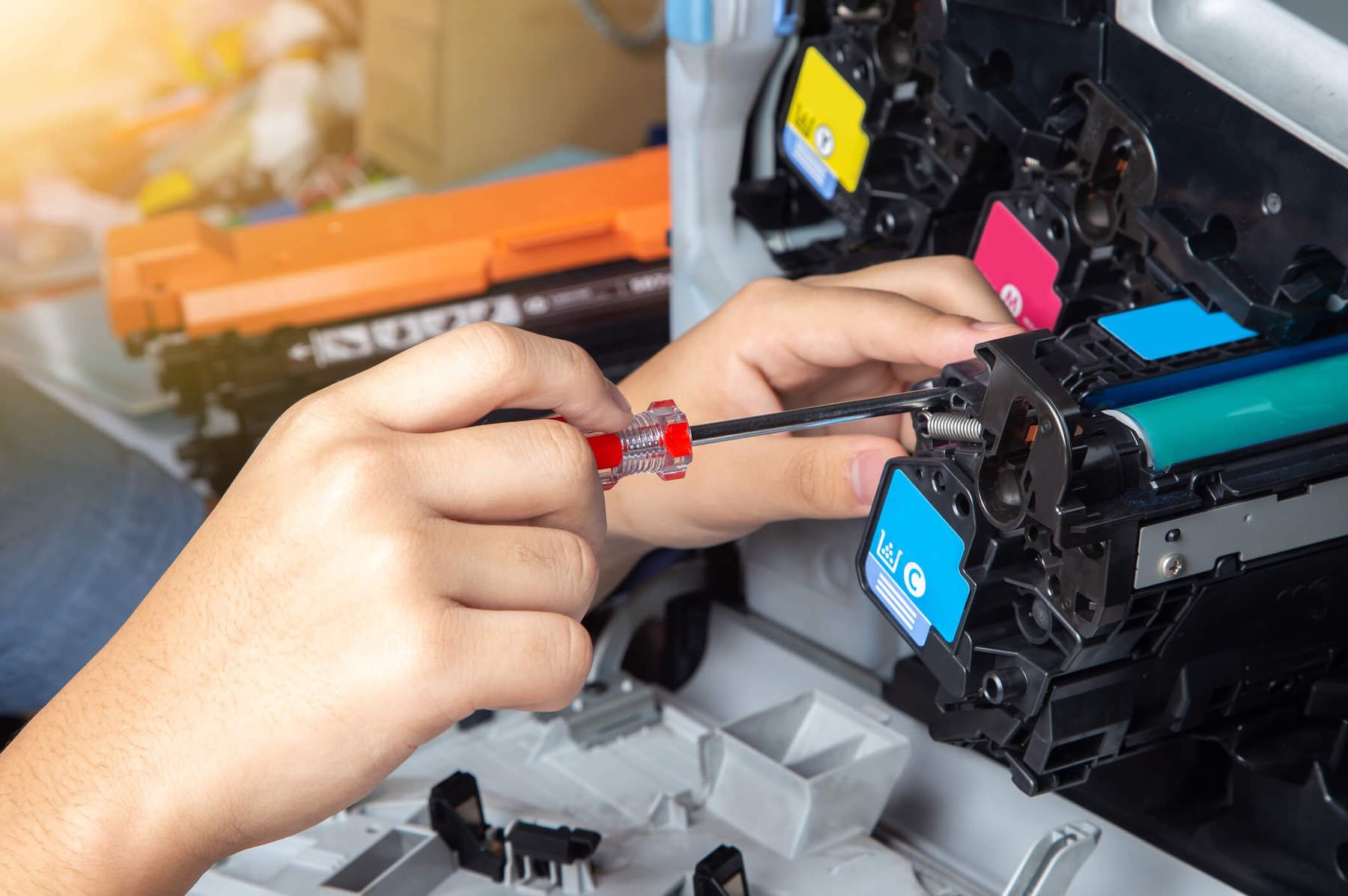
Sometimes, your printer might be acting up because of a clash with other software on your computer. It’s like trying to have a conversation with your mate while a load of other people are shouting over you
Do not overlook explore the latest data about printer fixing services.
you can’t hear anything properly.
There are a few ways to figure out if this is the issue and sort it out. You can check for programs that might be hogging the printer, see if your printer drivers are up to scratch, or even give them a fresh install.
Identifying Conflicting Software, How to fix another computer is using the printer
You need to find out which programs might be messing with your printer. This is like figuring out who’s shouting the loudest in that crowded room. Here’s how:
Check your computer’s task manager or activity monitor. This shows you what programs are running, and you can see if any are using the printer. If you see a program that you don’t recognise or haven’t used recently, it might be the culprit.
You can also look for programs that have a printer icon next to them. This means they’re using the printer.
Disabling Conflicting Software
Once you’ve found the software that’s causing trouble, you need to give it the boot. It’s like telling that loudmouth to shut up so you can have a proper conversation. Here’s how:
- Close the program. This is the easiest way to stop it from using the printer.
- Disable the program. If you can’t close the program, you can try disabling it. This stops it from running in the background. You can do this in your computer’s settings.
- Uninstall the program. If you don’t need the program, you can uninstall it completely. This is like chucking the loudmouth out of the room altogether.
Reinstalling or Updating Printer Drivers
Sometimes, the software that runs your printer, called drivers, can get out of whack. It’s like your printer’s instructions getting mixed up. You need to give them a refresh or upgrade. Here’s how:
Reinstalling your printer drivers can fix a lot of issues. This is like giving your printer a fresh set of instructions. You can usually find the latest drivers on your printer manufacturer’s website.
Updating your printer drivers can also fix problems. This is like giving your printer a software update. You can usually find the latest updates on your computer’s operating system or on your printer manufacturer’s website.
Security Settings
Security settings can be a real pain in the neck when you’re trying to get your printer working on another computer. It’s like the printer’s saying, “Nah, you ain’t getting in here without permission!” But don’t worry, we’ll sort it out.
Security settings are like the bouncer at the club, they’re there to make sure only the right people get in. Printers can have all sorts of security settings, like passwords, user permissions, and even encryption. These settings can block your computer from accessing the printer if they’re not configured properly.
Checking and Modifying Printer Security Settings
Alright, so how do you check and change these settings? It depends on the printer, but most printers have a control panel or web interface where you can access the security settings. Here’s the general gist:
- Find the printer’s control panel:This could be a physical panel on the printer itself, or you might need to access it through a web browser by typing in the printer’s IP address.
- Look for the security settings:You might find this under a menu called “Security,” “Network,” or “Admin.”
- Check the current settings:See what kind of security is enabled, like passwords, user permissions, or encryption.
- Modify the settings:If you need to change the settings, follow the on-screen instructions.
Granting or Revoking Printer Access
If you’re trying to access the printer from another computer, you might need to grant access to that computer. This is usually done by adding the computer to a list of authorized devices. Here’s how it might work:
- Access the printer’s security settings:Follow the steps above to get to the security settings.
- Find the “Access Control” or “User Management” section:This is where you can manage who can use the printer.
- Add or remove devices:You might need to enter the computer’s name or IP address. Some printers might let you add devices directly, while others might require you to create a user account first.
Troubleshooting Tips
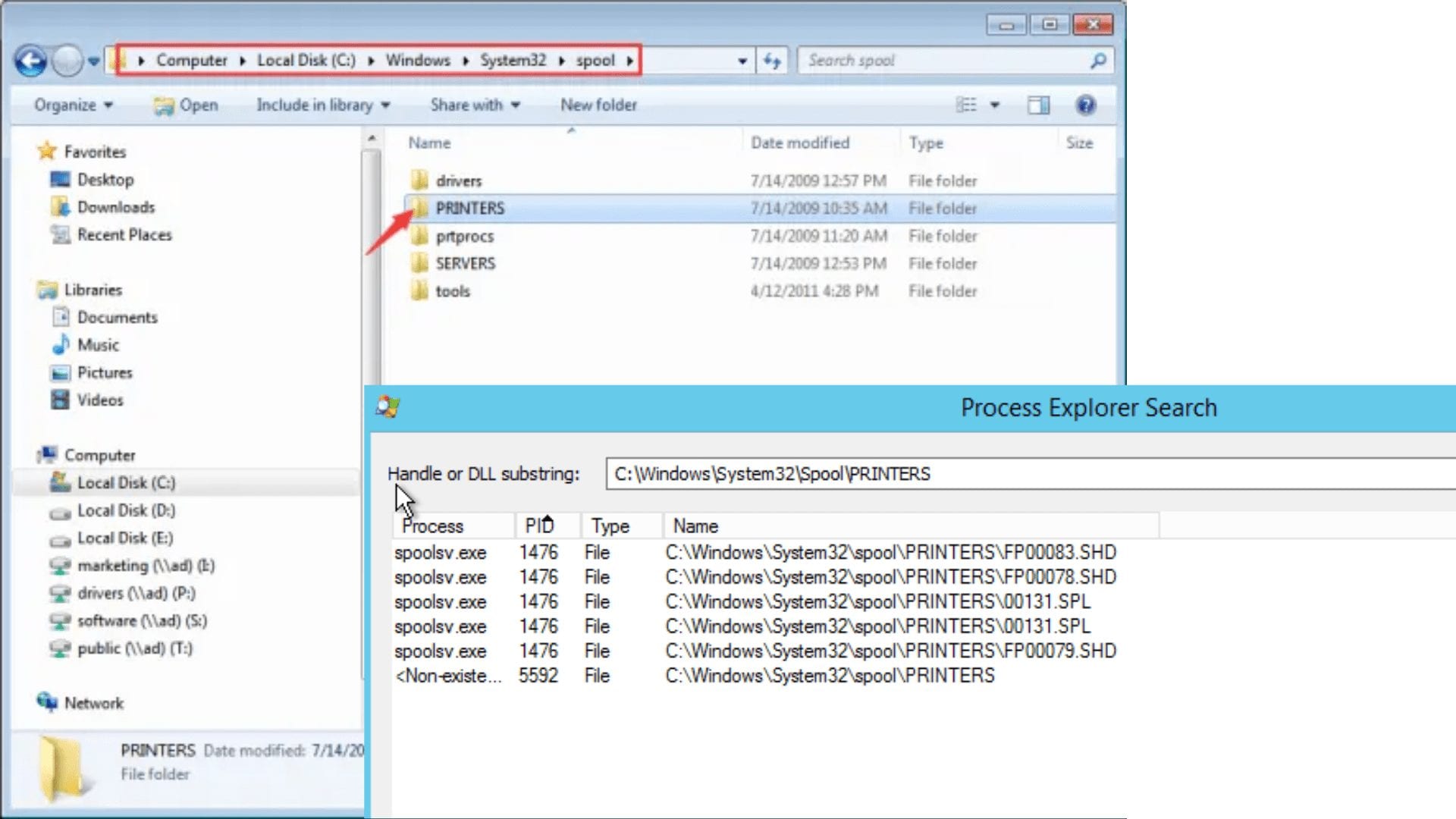
Sometimes, even after checking the basics, your printer might still be playing hard to get. Don’t panic, mate. There are a few more things you can try to get it back in the game.
Restarting Devices
A good old restart can often sort out a lot of tech woes. Try restarting your printer, your computer, and even your network router. Sometimes, a fresh start is all it takes to get things running smoothly again.
Disconnecting and Reconnecting the Printer
If restarting doesn’t do the trick, disconnecting and reconnecting your printer to the network can be a good next step. This can help to refresh the connection and resolve any temporary glitches.
- Unplug the printer from the power outlet.
- Disconnect the printer from your network (either wirelessly or via Ethernet cable).
- Wait a few minutes.
- Reconnect the printer to your network.
- Plug the printer back into the power outlet.
- Wait for the printer to power up and connect to the network.
Checking for Updates
Keeping your printer’s software up-to-date is essential for smooth operation. Check if there are any updates available for your printer’s drivers and firmware. You can usually find updates on the manufacturer’s website.
Obtain a comprehensive document about the application of Food Stamps that is effective.
Running a Printer Diagnostic Test
Most printers have a built-in diagnostic test that can help identify specific problems. Refer to your printer’s manual to find out how to run the diagnostic test. This can help pinpoint the source of the issue, whether it’s a hardware problem or a software glitch.
Cleaning the Printer
Dust, debris, and paper jams can all cause printing problems. Give your printer a good clean, especially the print head and the paper path. Refer to your printer’s manual for specific cleaning instructions.
Checking for Paper Jams
A paper jam is a common culprit for printing issues. Check the paper tray, the paper path, and the output tray for any signs of jammed paper. Remove any jammed paper carefully to avoid damaging the printer.
Advanced Solutions

Sometimes, fixing a printer issue requires digging a bit deeper. This section will cover some more advanced troubleshooting techniques, such as network monitoring and configuring static IP addresses.
Monitoring Printer Activity
Network tools can be invaluable in pinpointing the root of printer problems. These tools allow you to observe network traffic, identify potential bottlenecks, and check if the printer is communicating correctly.
- Network Monitoring Tools: Popular options include Wireshark, tcpdump, and SolarWinds Network Performance Monitor. These tools can capture and analyze network packets, providing insights into communication patterns and potential issues.
- Event Logs: Windows and macOS have built-in event logs that record system activity, including printer-related events.
Examining these logs can reveal error messages or warnings that might indicate a problem.
- Printer Status Pages: Many printers have a built-in web interface or status page that displays information about the printer’s current state, including error messages and network connectivity details.
Configuring a Static IP Address
Assigning a static IP address to your printer can enhance its stability and reliability, particularly in network environments where IP addresses are dynamically assigned.
- Obtain the Printer’s IP Address: Connect the printer to the network and print a network configuration page. This page will display the printer’s current IP address.
- Access the Router Settings: Open a web browser and enter the router’s IP address. This is usually found on the router’s label or by searching for “router IP address” in a web search.
- Locate the DHCP Settings: Navigate to the router’s DHCP settings section. This is often found under “LAN,” “Network,” or “DHCP Server.”
- Reserve an IP Address: In the DHCP settings, look for an option to “Reserve IP Address” or “Static IP Assignment.”
- Enter Printer Details: Enter the printer’s MAC address (found on the network configuration page) and the desired static IP address.
This IP address should be within the router’s subnet range.
- Save Changes: Apply the changes and reboot the router.
Dedicated Printer Server
Using a dedicated printer server can provide enhanced security, management, and performance for your printing infrastructure.
- Benefits:
- Centralized Management: A dedicated server simplifies printer administration tasks, allowing you to manage multiple printers from a single location.
- Enhanced Security: A dedicated server can isolate printers from the main network, reducing the risk of security breaches.
- Improved Performance: A dedicated server can handle print jobs more efficiently, especially when dealing with high print volumes.
- Drawbacks:
- Cost: Setting up and maintaining a dedicated server requires additional hardware and software costs.
- Complexity: Managing a dedicated server can be more complex than managing individual printers.
- Single Point of Failure: If the server fails, all printers connected to it will be unavailable.
FAQ Explained
What if I can’t see the printer in my network list?
Ensure the printer is turned on and connected to the network. Check your network settings to confirm the printer is properly connected and assigned an IP address. If the printer is still not visible, try restarting your router and the printer.
Can I print directly to the printer without using the network?
Yes, if your printer has a USB connection, you can connect it directly to your computer. However, this will only allow one computer to print at a time. For shared printing, you’ll need to use the network.
How can I prevent another computer from using my printer in the future?
You can set specific access permissions for your printer in your network settings. You can choose to allow or restrict access for different users or computers. Additionally, you can regularly check your printer settings and network configuration to ensure they are still set to your preferences.
