How to fix zebra label printer – The hum of a Zebra label printer is a familiar sound in many businesses, but what happens when that hum turns into a frustrating silence or a chorus of error messages? The journey of a Zebra label printer is much like our own, filled with moments of smooth operation and unexpected hiccups.
Just as we learn to navigate life’s challenges, understanding the inner workings of your Zebra printer empowers you to overcome those obstacles and keep your printing operations running smoothly.
From basic troubleshooting steps to advanced network configurations, this guide will equip you with the knowledge and tools to diagnose, fix, and prevent common Zebra label printer problems. Think of this guide as a spiritual practice, where each step in troubleshooting and maintenance is a chance for reflection and growth, bringing you closer to a harmonious relationship with your printer.
Common Zebra Label Printer Problems
Zebra label printers are reliable workhorses in many industries, but they can experience issues like any other piece of equipment. Understanding common problems can help you troubleshoot and resolve them quickly, minimizing downtime and ensuring smooth operations.
Common Error Messages and Their Causes
Error messages provide valuable clues to identify the root cause of a printer problem.
- “Out of Label”: This message indicates that the printer has run out of labels. Check the label roll and ensure it is properly loaded.
- “Media Jam”: A media jam occurs when the label material gets stuck in the printer’s path. This can happen due to misaligned labels, wrinkles, or debris. Inspect the printer and clear the jam.
- “Communication Error”: This error message suggests a problem with the communication between the printer and the computer or network. Check the USB connection, network settings, and printer drivers.
- “Printer Offline”: The printer might be offline due to a power issue, incorrect network settings, or a malfunctioning communication interface. Verify the power connection, network configuration, and communication ports.
- “Head Open”: This error message indicates that the print head is not properly closed or secured. Ensure the print head is correctly installed and closed.
- “Sensor Error”: This message suggests a problem with the sensors that detect label movement and position. Check the sensor alignment and ensure it is clean.
- “Ribbon Error”: A ribbon error usually occurs when the ribbon is not properly installed or has reached the end. Check the ribbon installation and replace it if necessary.
Types of Printer Malfunctions
Zebra label printers can experience a range of malfunctions, from simple to complex.
- Label Feed Issues: Problems with label feeding can be caused by misaligned labels, wrinkles, or debris. Ensure the labels are correctly loaded and that the printer is clean.
- Print Quality Issues: Faulty print quality can result from worn-out print heads, incorrect ribbon settings, or a dirty print head. Clean the print head and ensure the ribbon is properly installed.
- Communication Problems: Communication errors can occur due to faulty USB connections, network issues, or outdated drivers. Check the connections, network settings, and update drivers.
- Hardware Failures: Hardware failures can include issues with the print head, motor, or other internal components. Contact a qualified technician for repair or replacement.
Troubleshooting Basic Issues
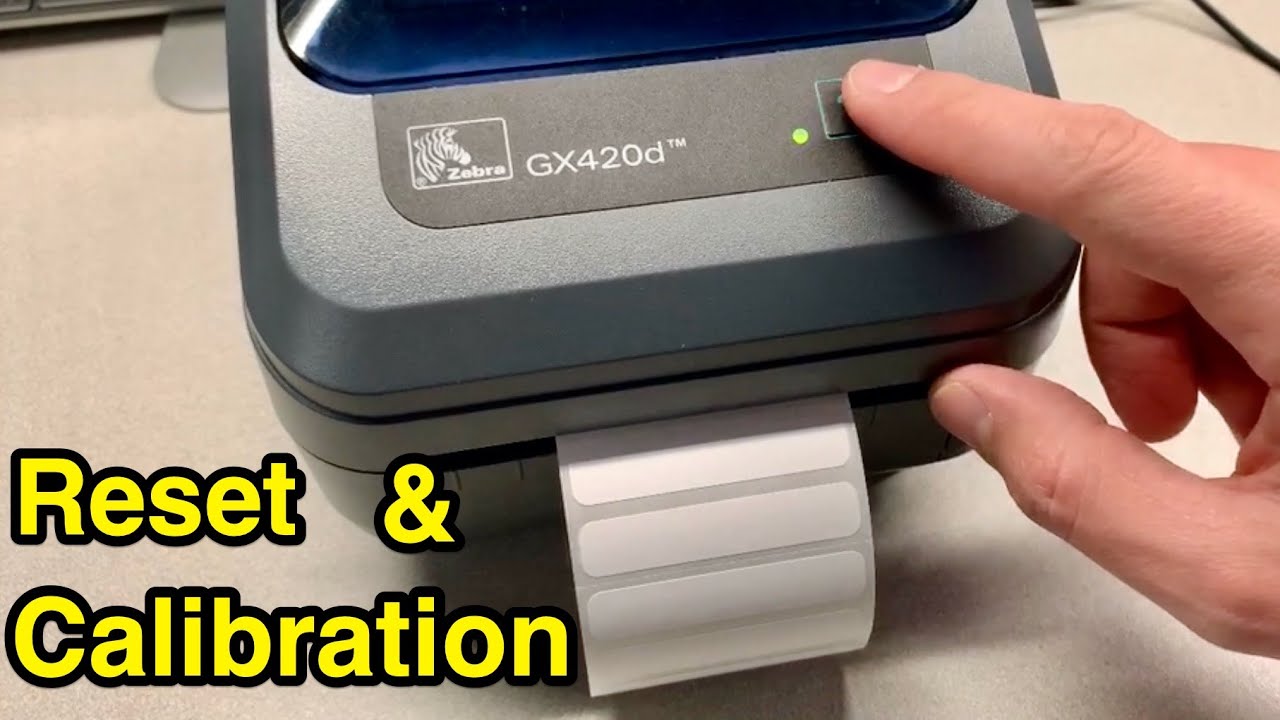
Basic issues are common with any printer, and Zebra label printers are no exception. These issues can often be resolved with simple troubleshooting steps, saving you time and frustration. Understanding the common causes and solutions for these problems can help you quickly get your printer back up and running.
Paper Jams
Paper jams are a frequent occurrence in printers, often caused by misaligned paper or obstructions in the paper path. Here’s how to resolve them:
- Turn off the printer: This ensures safety and prevents further damage.
- Open the printer cover: Locate the paper path and gently remove any jammed paper. Avoid tearing the paper, as this could damage the printer.
- Check for obstructions: Examine the paper path for any foreign objects or debris that might be causing the jam.
- Re-insert the paper: Ensure the paper is correctly loaded and aligned with the guides.
- Turn the printer back on: Test the printer by printing a test label to confirm the issue is resolved.
Label Misfeeds
Label misfeeds can occur due to incorrect label loading or misaligned labels. This can lead to labels being printed incorrectly or not at all. To troubleshoot label misfeeds:
- Check the label roll: Ensure the label roll is correctly loaded and that the labels are aligned with the guides.
- Adjust the label sensor: The label sensor detects the start of each label. If it’s misaligned, it can cause misfeeds. Consult your printer manual for instructions on adjusting the sensor.
- Replace the label roll: If the problem persists, try replacing the label roll with a new one.
Print Quality Issues
Print quality issues can range from faded labels to blurry text. These problems often stem from a dirty printer head or worn rollers. To address these issues:
- Clean the printer head: Use a cleaning solution specifically designed for printer heads. Follow the manufacturer’s instructions carefully.
- Clean the rollers: Use a soft, lint-free cloth to clean the rollers. Avoid using harsh chemicals or abrasive materials.
- Replace the ribbon: A worn ribbon can also affect print quality. Replace the ribbon with a new one.
Loose Connections
Loose connections can disrupt the printer’s functionality, affecting printing, label feeding, and even power supply. To address this:
- Check the power cord: Ensure the power cord is securely connected to both the printer and the power outlet.
- Inspect the USB cable: If using a USB connection, ensure the cable is firmly connected to both the printer and the computer. Consider replacing the cable if it shows signs of wear or damage.
- Examine the printer’s internal connections: If possible, carefully check the internal connections for any loose wires or components.
Proper Label Loading
Loading labels correctly is crucial for smooth operation and accurate printing. Follow these steps for proper label loading:
- Open the printer cover: Locate the label roll holder and ensure it’s empty.
- Insert the label roll: Place the label roll onto the holder, ensuring the label feed is aligned with the guides.
- Secure the label roll: Use the locking mechanism to secure the label roll in place.
- Adjust the label sensor: If necessary, adjust the label sensor to detect the start of each label.
- Close the printer cover: Ensure the cover is securely closed.
Cleaning the Printer Head and Rollers
Regular cleaning of the printer head and rollers is essential for maintaining optimal print quality. Here’s a step-by-step guide:
- Turn off the printer and unplug it: This ensures safety and prevents any electrical hazards during cleaning.
- Open the printer cover: Locate the printer head and rollers.
- Clean the printer head: Use a cleaning solution specifically designed for printer heads. Apply the solution to a soft, lint-free cloth and gently wipe the printer head. Avoid applying excessive pressure.
- Clean the rollers: Use a soft, lint-free cloth to clean the rollers. Avoid using harsh chemicals or abrasive materials. If necessary, use a slightly damp cloth.
- Allow the printer to dry completely: Once the cleaning is complete, allow the printer to dry thoroughly before plugging it back in.
- Turn the printer back on: Test the printer by printing a test label to confirm the cleaning was successful.
Software and Driver Issues
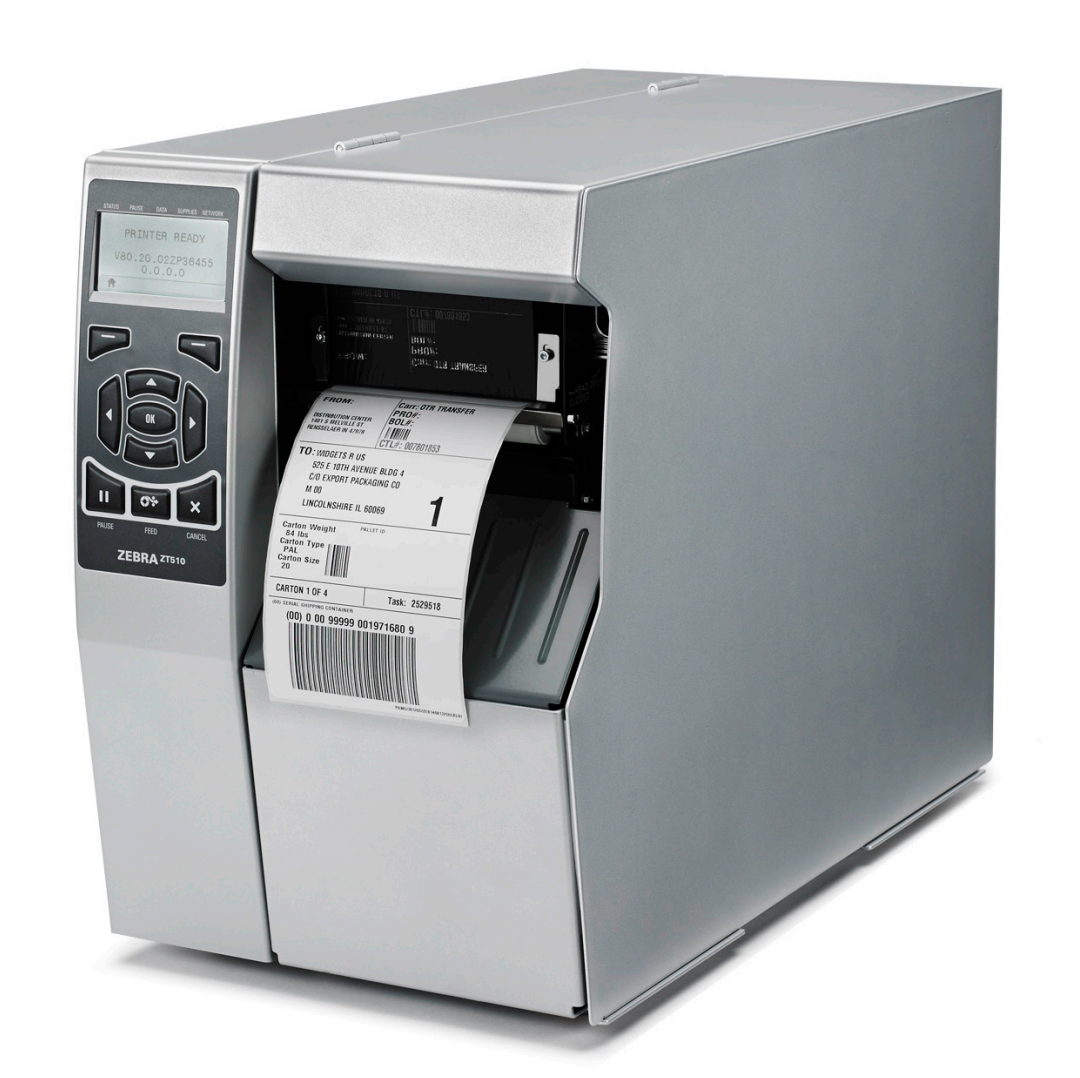
Software and driver conflicts are a common cause of Zebra label printer problems. Outdated, incompatible, or corrupted drivers can lead to printing errors, connectivity issues, and even printer malfunctions.
Updating or Reinstalling Drivers
Updating or reinstalling drivers is a crucial step in resolving software and driver conflicts. Outdated drivers may lack compatibility with the latest operating system or printer firmware, leading to printing errors. Updating or reinstalling drivers involves the following steps:
- Identify the printer model: Check the printer’s label or manual to find the exact model number.
- Visit the Zebra website: Go to the Zebra support page and enter the printer model number in the search bar.
- Download the latest drivers: Select the appropriate operating system and download the latest drivers for your printer.
- Run the driver installer: Double-click the downloaded file and follow the on-screen instructions to install the drivers.
- Restart the computer: After the installation is complete, restart your computer to ensure the new drivers are loaded correctly.
Troubleshooting Printer Connectivity Problems
Connectivity issues can arise from faulty cables, incorrect network settings, or driver conflicts. To troubleshoot printer connectivity problems, follow these steps:
- Check the USB cable: Ensure the USB cable is securely connected to both the printer and the computer. Try using a different USB cable if available.
- Check the network connection: If using a network connection, verify that the printer is connected to the network and that the network settings are correct.
- Check the printer’s status: Look for error messages or indicators on the printer’s display.
- Restart the printer and computer: Sometimes restarting both the printer and computer can resolve connectivity issues.
- Reinstall the printer drivers: If the problem persists, try reinstalling the printer drivers.
Network Connectivity
Connecting your Zebra label printer to a network enables seamless printing from multiple computers and devices. This allows for centralized management of printer settings and efficient label printing across your organization.
Setting Up a Zebra Label Printer on a Network
Network setup involves configuring the printer’s IP address and connecting it to your network.
- Connect the printer to your network:Use an Ethernet cable to connect the printer to your network router or switch.
- Access the printer’s configuration menu:Consult your printer’s manual for instructions on accessing the configuration menu. This is usually done by pressing a specific button on the printer’s control panel or using a web-based interface.
- Configure the IP address:Choose a static IP address within your network’s range or opt for a dynamic IP address assigned by your DHCP server.
- Set up the network protocol:Select the appropriate network protocol (TCP/IP) and ensure it aligns with your network settings.
- Save the settings:Save the changes to your printer’s configuration.
Troubleshooting Network Connectivity Issues
If your Zebra label printer is experiencing network connectivity problems, you can follow these steps to identify and resolve the issue.
- Verify the physical connection:Ensure the Ethernet cable is securely connected to both the printer and your network router or switch.
- Check the network settings:Verify the IP address and network protocol settings on the printer match those of your network.
- Ping the printer:Use the “ping” command in a command prompt or terminal window to test the network connection to the printer.
- Restart the printer and router:Sometimes, restarting both the printer and your network router can resolve temporary connectivity issues.
- Check for network conflicts:If multiple devices are using the same IP address, it can cause connectivity problems. Ensure the IP address assigned to the printer is unique within your network.
- Update the printer driver:An outdated printer driver can lead to network issues. Download and install the latest driver from the Zebra website.
- Contact your network administrator:If you continue to experience connectivity issues, contact your network administrator for assistance.
Configuring Network Settings and Printer Sharing
Network settings and printer sharing are crucial for managing and accessing your Zebra label printer from multiple devices.
- Configure the printer’s sharing settings:Access the printer’s configuration menu and enable printer sharing. This allows other devices on your network to discover and print to the printer.
- Add the printer to your computer:On your computer, add the Zebra label printer as a network printer. This involves specifying the printer’s IP address or hostname and installing the appropriate driver.
- Set up print queues:Create and manage print queues for different users or groups to streamline printing tasks.
Label Design and Printing
Designing and printing labels effectively is crucial for maximizing the functionality of your Zebra label printer. Zebra’s design software offers a user-friendly interface for creating professional-looking labels that meet your specific needs.
Obtain direct knowledge about the efficiency of how to fix peeling print on shirt through case studies.
Creating and Printing Labels with Zebra Design Software, How to fix zebra label printer
Zebra’s design software, typically Zebra Designer or Zebra Setup Utilities, provides a comprehensive platform for label creation and printing.
- Creating a New Label Template:Start by selecting a pre-defined template or creating a custom one based on your label size and dimensions.
- Adding Text and Graphics:Incorporate text elements, barcodes, images, and other graphics to design your label layout.
- Formatting and Styling:Customize fonts, colors, and alignment to enhance readability and visual appeal.
- Data Integration:Connect your label design to external data sources, such as databases or spreadsheets, to automate label content.
- Printing Options:Choose the appropriate print settings, including print mode, label quantity, and media type.
Optimizing Label Designs for Efficient Printing
Efficient label printing involves minimizing waste and ensuring optimal print quality. Here are some key considerations:
- Label Size and Dimensions:Select the most suitable label size for your application to avoid unnecessary waste.
- Content Placement:Position essential information within the printable area of the label to prevent cutting off critical data.
- Barcode Design:Use high-contrast barcodes with appropriate symbology and dimensions for reliable scanning.
- Font Selection:Choose legible fonts and font sizes, considering the label size and printing resolution.
- Color Usage:Limit the use of colors to improve print speed and reduce ink consumption.
Label Printing Options and Their Applications
Zebra label printers offer various printing methods, each suited for specific applications:
- Direct Thermal Printing:This method uses heat-sensitive paper that darkens when heated by the print head. It’s ideal for applications requiring quick and inexpensive printing, such as shipping labels and receipts.
- Thermal Transfer Printing:This method uses a ribbon to transfer ink onto the label material. It offers greater durability and resistance to smudging and fading, making it suitable for labels exposed to harsh environments or requiring long-lasting legibility.
Maintenance and Care
Regular maintenance is crucial for ensuring your Zebra label printer operates reliably and efficiently. Neglecting maintenance can lead to performance issues, premature wear, and costly repairs. A well-maintained printer delivers consistent print quality, minimizes downtime, and extends its lifespan.
Maintenance Schedule
A structured maintenance schedule helps ensure consistent care for your Zebra label printer.
Understand how the union of Food Stamps can improve efficiency and productivity.
- Daily Cleaning:Dust and debris accumulation can hinder printer performance. Use a soft, dry cloth to clean the exterior, printhead, and label path.
- Weekly Inspection:Examine the printer for any signs of damage, wear, or malfunction. Check the ribbon tension, label sensor, and printhead alignment.
- Monthly Cleaning:Perform a thorough cleaning of the printhead and label path using a cleaning kit designed for Zebra printers. Follow the manufacturer’s instructions carefully.
- Quarterly Maintenance:Replace worn-out consumables, such as the printhead, ribbon, and label sensor. Inspect the rollers for wear and tear, and lubricate moving parts as necessary.
- Annual Service:Schedule a professional service by a qualified technician to perform a comprehensive inspection, cleaning, and calibration. This helps identify and address potential issues before they escalate.
Extending Printer Lifespan
Following these tips can significantly extend the lifespan of your Zebra label printer:
- Use High-Quality Consumables:Employ genuine Zebra ribbons and labels designed for your printer model. Using incompatible consumables can damage the printer and lead to print quality issues.
- Proper Label Handling:Store labels in a cool, dry place, away from direct sunlight and heat. Avoid bending or creasing labels, as this can cause jams and damage the printer.
- Avoid Overheating:Ensure adequate ventilation around the printer to prevent overheating. Avoid placing it in direct sunlight or near heat sources.
- Regular Software Updates:Keep your printer’s firmware and drivers up-to-date. Updates often include performance enhancements, bug fixes, and security patches that can improve printer reliability.
Advanced Troubleshooting

While basic troubleshooting steps can resolve many common printer issues, more complex problems may require advanced techniques and specialized tools. This section will guide you through using Zebra’s troubleshooting tools and resources to diagnose and resolve intricate printer issues.
Using Zebra’s Troubleshooting Tools and Resources
Zebra offers a comprehensive suite of tools and resources to assist users in troubleshooting printer problems. These resources are designed to provide detailed information and support for various printer models and configurations.
- ZebraNet Print Server Configuration Utility:This utility allows you to configure and manage ZebraNet print servers, which are essential for network printing. It provides tools for monitoring printer status, managing print queues, and troubleshooting network connectivity issues.
- Zebra Setup Utilities:Zebra provides setup utilities for various printer models, offering configuration options for label formats, printer settings, and communication protocols. These utilities can be accessed through the printer’s LCD display or via a connected computer.
- Zebra Developer Portal:This portal offers a wealth of resources for developers, including software development kits (SDKs), sample code, and documentation. It provides tools for integrating Zebra printers with custom applications and automating printer tasks.
- Zebra Support Website:The Zebra support website offers a comprehensive knowledge base, FAQs, and troubleshooting guides. It also provides access to driver downloads, firmware updates, and technical documentation.
Diagnosing and Resolving Complex Printer Issues
Complex printer issues often require a systematic approach to diagnosis and resolution. Here are some steps to follow when troubleshooting intricate problems:
- Identify the Symptoms:Clearly define the problem you are experiencing. Is the printer not printing at all? Are labels printing incorrectly? Is there an error message on the LCD display? Providing detailed information about the issue will help narrow down the potential causes.
- Check Basic Settings:Ensure that the printer is properly configured for your specific label format, print settings, and communication protocol. Verify that the label stock is loaded correctly and that the printer is connected to the appropriate network or computer.
- Run Diagnostics:Use Zebra’s diagnostic tools to test the printer’s hardware components, including the printhead, sensors, and communication interfaces. Diagnostic tests can help pinpoint specific hardware failures or malfunctions.
- Check for Error Messages:The printer’s LCD display may provide error messages that indicate the source of the problem. Refer to the printer’s manual or Zebra’s support website for a detailed explanation of error codes and possible solutions.
- Review Event Logs:ZebraNet print servers and some printer models maintain event logs that record significant events, including errors, warnings, and configuration changes. Reviewing these logs can provide valuable insights into the cause of the problem.
- Consult Technical Documentation:Refer to the printer’s user manual, technical specifications, and troubleshooting guides for detailed information about the printer’s features, functionality, and potential problems.
Contacting Zebra Support for Technical Assistance
If you are unable to resolve the printer issue through self-troubleshooting, you can contact Zebra support for technical assistance. Zebra offers various support channels, including phone, email, and online chat.
- Zebra Support Website:The Zebra support website provides contact information for various regions and technical support options.
- Phone Support:Zebra offers phone support for technical assistance. You can find the relevant phone numbers on the Zebra support website.
- Email Support:You can submit a support request via email. The Zebra support website provides details on how to submit a support request.
- Online Chat:Zebra may offer online chat support for immediate assistance. Check the Zebra support website for availability.
Common Errors and Solutions
Zebra label printers are robust machines, but like any other device, they can experience errors. Understanding common errors and their solutions can help you troubleshoot and resolve issues quickly.
Common Zebra Label Printer Errors and Solutions
This table Artikels some common Zebra label printer errors, their descriptions, potential causes, and recommended solutions:
| Error Code | Description | Potential Cause | Solution |
|---|---|---|---|
| 100 | Media Out | No media loaded in the printer or the media sensor is malfunctioning. | Ensure media is properly loaded and the sensor is clean. |
| 120 | Media Jam | Paper or label jam in the printer. | Clear the jam by carefully removing the stuck media. |
| 130 | Media Sensor Failure | Media sensor is not detecting the presence of media. | Clean the media sensor or replace it if necessary. |
| 200 | Communication Error | Issue with the connection between the printer and the computer or network. | Check the connection cable, driver settings, and network configuration. |
| 210 | Printer Not Ready | Printer is not powered on or is in an error state. | Ensure the printer is powered on and not in an error state. |
| 220 | Printer Busy | Printer is currently processing a print job. | Wait for the current print job to complete or cancel it. |
| 300 | Printhead Error | Printhead is malfunctioning or has reached its end of life. | Clean the printhead or replace it if necessary. |
| 310 | Printhead Overheat | Printhead is overheating due to excessive use or improper ventilation. | Allow the printer to cool down or reduce print speed. |
| 400 | Memory Error | Printer’s memory is full or corrupted. | Clear the printer’s memory or increase its capacity. |
| 500 | Software Error | Issue with the printer’s firmware or software. | Update the printer’s firmware or software. |
Preventive Measures: How To Fix Zebra Label Printer
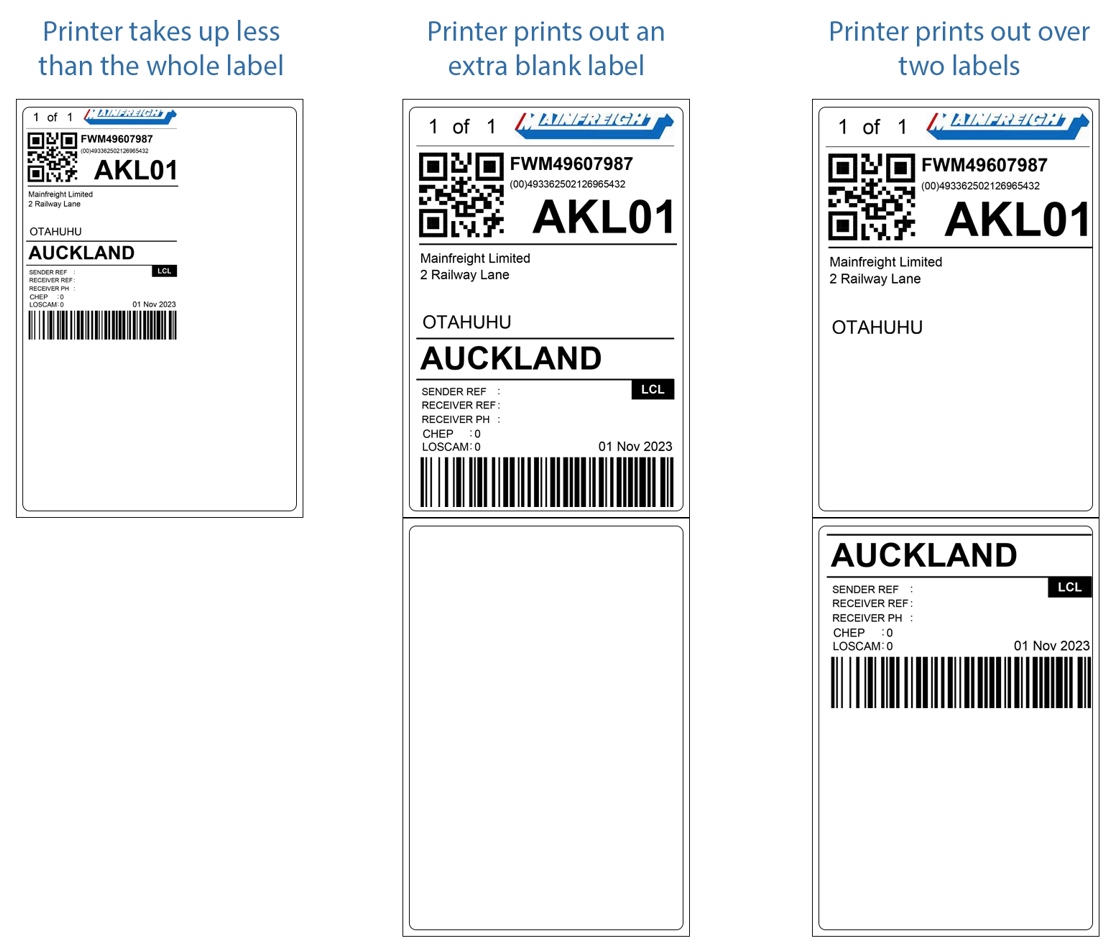
Proactive maintenance and responsible usage are crucial for extending the lifespan of your Zebra label printer and ensuring reliable performance. Implementing preventative measures can significantly reduce the occurrence of common problems, minimize downtime, and save you money in the long run.
Using High-Quality Labels and Consumables
The quality of labels and consumables directly impacts printer performance and print quality. Using low-quality labels can lead to jams, poor print quality, and damage to the printer’s printhead. Choosing the right labels and consumables is essential for optimal printer operation.
- Label Material:Select labels made from materials compatible with your printer model. Consult the printer manual or manufacturer’s website for recommended label types.
- Label Adhesive:The adhesive should be strong enough to adhere securely to the intended surface but not so strong that it damages the printer’s rollers.
- Ribbon Type:Use ribbons specifically designed for the type of labels you are printing. Different ribbons are available for different label materials, such as thermal transfer or direct thermal.
- Ribbon Quality:Choose ribbons from reputable manufacturers to ensure consistent print quality and minimize ribbon breakage.
Environmental Factors
Environmental conditions can significantly affect printer performance. Extreme temperatures, humidity, and dust can cause malfunctions and shorten the printer’s lifespan.
- Temperature:Zebra printers are designed to operate within a specific temperature range. Avoid exposing the printer to extreme heat or cold.
- Humidity:High humidity can cause condensation and damage to electronic components. Keep the printer in a dry environment.
- Dust:Dust can accumulate on the printer’s rollers and printhead, causing jams and print quality issues. Regularly clean the printer to remove dust and debris.
Essential FAQs
How do I know if my Zebra printer is connected to the network?
Check the printer’s display for a network icon or a connected status. You can also check your computer’s network settings to see if the printer is listed.
What if my Zebra printer is not printing labels properly?
This could be due to a variety of factors, including misaligned labels, a dirty print head, or incorrect print settings. Check the label loading, clean the print head, and review your print settings.
Where can I find Zebra’s troubleshooting tools and resources?
You can access Zebra’s comprehensive support website and resources by visiting their official website or contacting their customer support directly.
