Fix Brother Printer: Navigating the world of Brother printers can sometimes feel like deciphering a complex code, especially when you’re facing a stubborn printing issue. From paper jams and ink cartridge errors to connectivity woes and print quality problems, the path to a smoothly functioning printer can seem daunting.
This comprehensive guide delves into the most common Brother printer problems, providing practical troubleshooting steps, expert advice, and preventative maintenance tips to ensure your printer remains a reliable companion for all your printing needs.
This guide is designed to equip you with the knowledge and tools to tackle a wide range of printer problems. We’ll cover everything from basic troubleshooting techniques to advanced solutions, ensuring you can confidently diagnose and resolve most printer issues.
Whether you’re a seasoned tech enthusiast or a casual user, this guide will provide valuable insights and empower you to keep your Brother printer running smoothly.
Driver and Software Updates
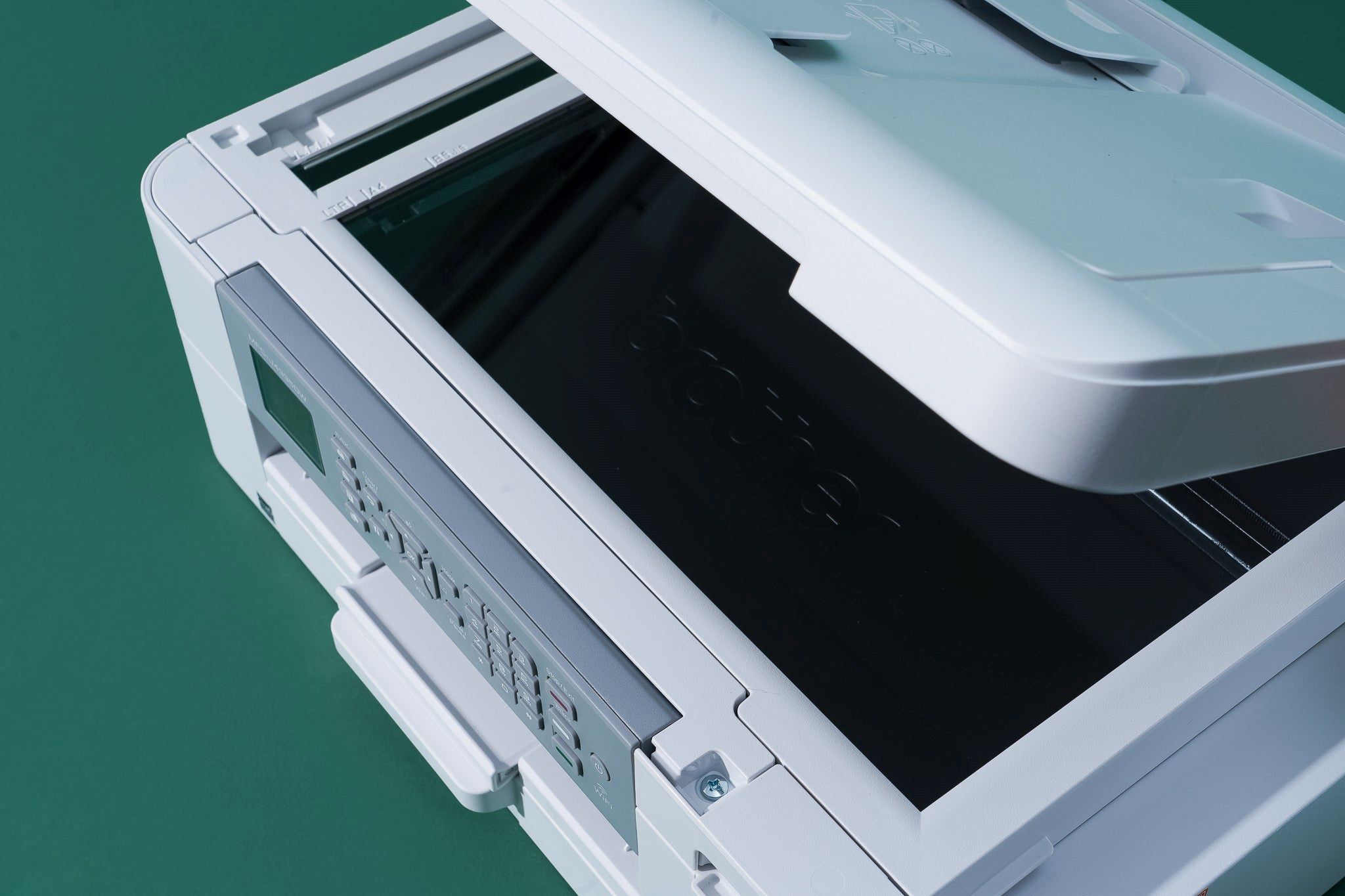
Keeping your printer’s drivers and software up-to-date is crucial for ensuring optimal performance, reliability, and compatibility with your computer. Outdated drivers can lead to various issues, including printing errors, slow printing speeds, and even printer malfunctions.
Checking for Updates
It’s essential to regularly check for and install the latest updates for your Brother printer. This ensures you have the most recent features, bug fixes, and security enhancements. Brother provides a straightforward process for checking and installing updates.
- Visit the Brother website and navigate to the support or download section.
- Enter your printer model number or use the automatic detection feature.
- Download the latest driver and software package for your operating system.
- Follow the installation instructions provided by Brother.
Examples of Outdated Drivers
Outdated drivers can lead to various printer malfunctions, including:
- Printing errors:Incorrect driver settings or missing updates can cause errors like “cannot print” or “device not found”.
- Slow printing speeds:Outdated drivers may not optimize the printer’s performance, leading to slower print speeds than expected.
- Paper jams:Incorrect driver settings related to paper size or type can cause paper jams.
- Print quality issues:Outdated drivers might not support the latest print resolutions or color profiles, resulting in poor print quality.
- Incompatibility with new software:Older drivers might not be compatible with new operating systems or software applications.
Ink Cartridge and Toner Maintenance
Keeping your Brother printer’s ink cartridges and toner in good condition is crucial for ensuring optimal print quality and extending the life of your printer. Proper maintenance involves a combination of storage, handling, and replacement practices.
Ink Cartridge and Toner Storage
Storing your ink cartridges and toner properly can help prevent them from drying out or becoming damaged. Here are some tips for storage:
- Store ink cartridges and toner in a cool, dry place, away from direct sunlight and heat sources.
- Keep cartridges in their original packaging or airtight containers to protect them from moisture and dust.
- Avoid storing cartridges in humid environments, as this can cause the ink to dry out or the toner to clump.
- Do not store cartridges for extended periods at temperatures below freezing or above 100°F (38°C).
Ink Cartridge and Toner Handling
Proper handling of ink cartridges and toner is essential to avoid damage and ensure smooth printing. Here are some key considerations:
- Avoid touching the copper contacts on the bottom of the cartridge, as this can cause malfunctions.
- Handle cartridges gently and avoid dropping or shaking them, as this can damage the internal components.
- Store cartridges in an upright position, with the nozzle facing up.
- Clean the contacts of the cartridge with a soft, dry cloth before installing it in the printer.
Ink Cartridge and Toner Replacement
Knowing when to replace your ink cartridges or toner is essential for maintaining print quality and preventing printer issues. Here are some indicators that a replacement is needed:
- Low Ink or Toner Level Indicators:Your printer will usually display a warning message when the ink or toner levels are low.
- Print Quality Degradation:Faint or faded printouts, streaks, or blotches indicate that the ink or toner is running low or has dried out.
- Error Messages:Your printer may display error messages related to ink or toner, such as “Ink Cartridge Empty” or “Toner Low.”
Benefits of Using Genuine Brother Supplies
Using genuine Brother ink cartridges and toner offers several benefits:
- Optimal Print Quality:Genuine supplies are designed specifically for your Brother printer, ensuring consistent and high-quality prints.
- Reliable Performance:Brother cartridges and toner are tested and manufactured to meet rigorous quality standards, minimizing the risk of printer malfunctions.
- Extended Printer Lifespan:Using genuine supplies helps to protect your printer from damage and extend its lifespan.
- Environmental Responsibility:Brother cartridges and toner are designed with sustainability in mind, using recycled materials and reducing waste.
Resetting Ink Levels or Addressing Ink Cartridge Errors
If your printer displays an ink level error or a message related to an ink cartridge issue, you may be able to reset the ink levels or address the error. Here are some common solutions:
- Power Cycle the Printer:Turn off the printer, unplug it, wait for a few minutes, plug it back in, and turn it on.
- Clean the Ink Cartridge Contacts:Use a soft, dry cloth to clean the contacts on the bottom of the ink cartridge.
- Replace the Ink Cartridge:If the error persists, try replacing the ink cartridge with a new one.
- Contact Brother Support:If you’re unable to resolve the issue, contact Brother support for assistance.
Connectivity Troubleshooting: Fix Brother Printer
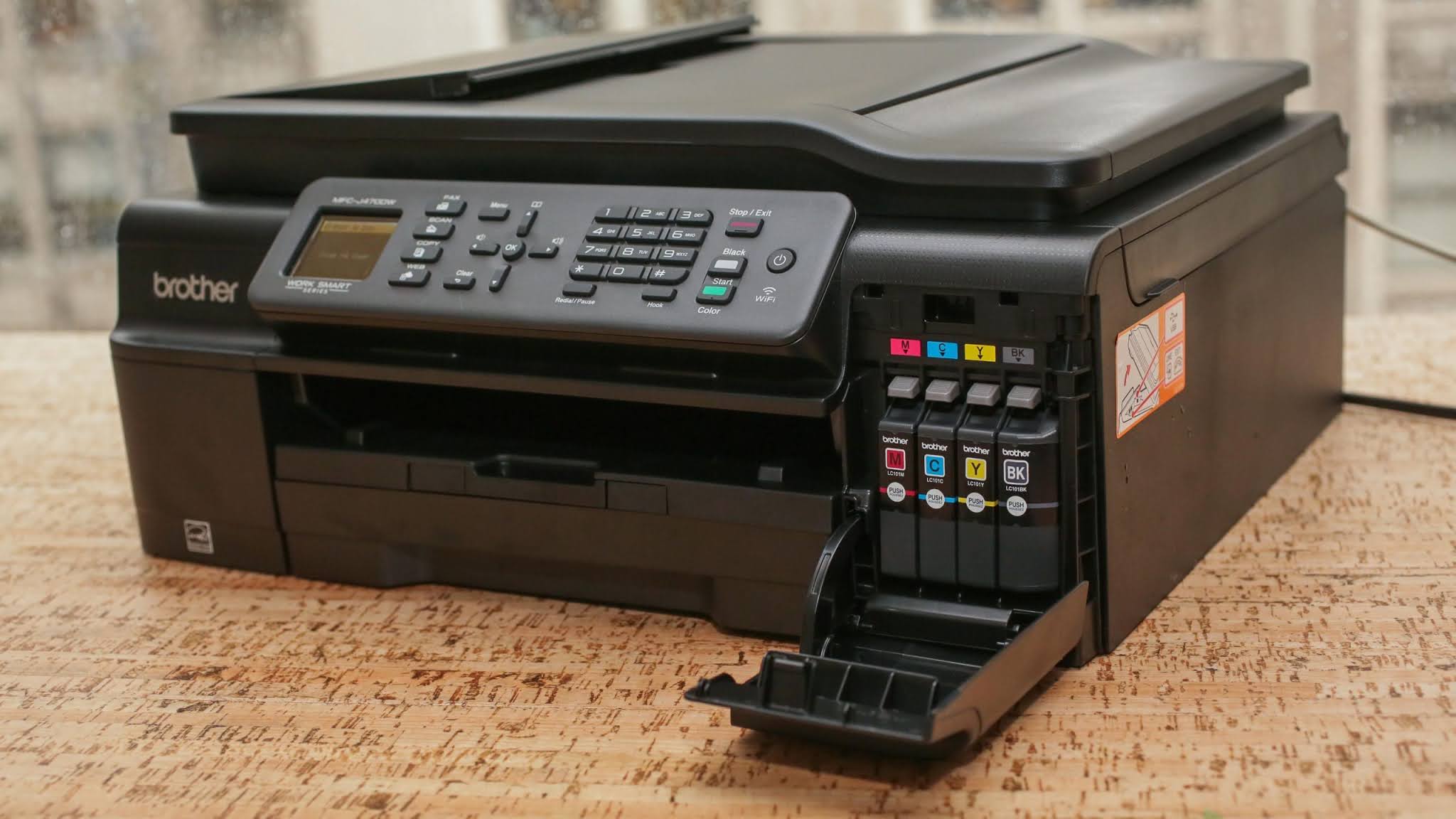
Connectivity issues can be frustrating, but they’re often solvable. This section will guide you through troubleshooting common connectivity problems with your Brother printer, from wireless network hiccups to USB connection errors.
Browse the multiple elements of Educational Word Searches to gain a more broad understanding.
Wireless Network Issues
Wireless connectivity is convenient but can be prone to problems. Here’s how to troubleshoot common wireless network issues:
- Restart your printer and router: This often resolves temporary glitches. Unplug both devices for 30 seconds, then plug them back in and allow them to reboot.
- Check your network settings: Ensure your printer is connected to the correct Wi-Fi network and that the password is entered correctly. You can typically access these settings through the printer’s control panel or a web-based interface.
- Verify your router’s signal strength: Weak signals can cause connectivity issues. Move your printer closer to the router or consider using a Wi-Fi extender to improve signal strength.
- Check for network interference: Devices like microwaves, cordless phones, and other wireless devices can interfere with Wi-Fi signals. Try moving your printer or router away from these devices.
- Update your router’s firmware: Outdated firmware can cause compatibility problems. Check your router’s manufacturer website for firmware updates.
- Reset your router: If you’ve tried the above steps and are still experiencing issues, resetting your router to its factory settings can sometimes resolve problems. Be aware that this will erase your router’s custom settings.
USB Connection Errors
USB connections are reliable but can sometimes encounter problems. Here are some troubleshooting steps for USB connection errors:
- Check the USB cable: Ensure the USB cable is securely connected to both your printer and computer. Try using a different USB cable if possible.
- Try a different USB port: If you’re using a USB hub, try plugging the printer directly into your computer’s USB port.
- Update your USB drivers: Outdated or corrupted USB drivers can cause connection errors. Visit your printer’s manufacturer website to download and install the latest drivers.
- Restart your computer: A simple restart can often resolve temporary USB connection issues.
Printer Sharing Difficulties, Fix brother printer
Sharing a printer on a network can be convenient but can also lead to issues. Here are some troubleshooting tips:
- Ensure the printer is properly shared: In your operating system’s settings, make sure the printer is shared and that the appropriate permissions are set.
- Check the network settings: Ensure that the printer and the computer accessing it are on the same network.
- Verify the printer driver is installed on all computers: Each computer that needs to access the shared printer should have the correct driver installed.
- Disable firewall settings: Temporarily disable your firewall to see if it’s blocking the printer connection. If this resolves the issue, you can try adding an exception for the printer in your firewall settings.
Types of Connectivity Options
Brother printers offer various connectivity options, each with its own advantages and disadvantages:
- USB: A reliable and direct connection between your printer and computer. It’s typically the fastest connection option but lacks the flexibility of wireless connections.
- Ethernet: A wired connection that offers high speeds and stability, making it suitable for high-volume printing. However, it requires a physical connection and can be less convenient than wireless options.
- Wi-Fi: Offers the most flexibility, allowing you to print from multiple devices without the need for cables. However, wireless connections can be susceptible to interference and can sometimes be slower than wired connections.
- Wi-Fi Direct: A direct wireless connection between your printer and device, eliminating the need for a router. It’s ideal for printing from mobile devices without connecting to a network. However, it may have limited range compared to standard Wi-Fi.
Advanced Troubleshooting Techniques

If you’ve exhausted the basic troubleshooting steps, you might be dealing with a more complex printer issue. This section delves into advanced techniques for diagnosing and resolving hardware failures, internal errors, and print quality problems.
Using Diagnostic Tools
Diagnostic tools are invaluable for pinpointing the root cause of printer problems. These tools provide detailed information about the printer’s hardware and software, allowing you to identify specific errors or malfunctions.
- Brother’s iPrint&Scan Utility:This utility offers a range of diagnostic features, including print tests, nozzle checks, and network connectivity assessments. It can help you identify problems with ink cartridges, print heads, or network settings.
- Built-in Self-Test Reports:Most Brother printers have built-in self-test functions that generate reports detailing the printer’s status and any detected errors. These reports can provide valuable insights into the problem.
Performing Basic Hardware Checks
Before contacting Brother support, performing basic hardware checks can save you time and effort. These checks can help you rule out common hardware issues that might be causing the problem.
- Check Power Connections:Ensure that the printer is properly plugged into a working power outlet and that the power cord is securely connected. A loose connection can cause intermittent power issues.
- Inspect Paper Path:Examine the paper path for any obstructions, such as paper jams, foreign objects, or crumpled paper. Clear any obstructions and ensure the paper path is free of debris.
- Verify Ink Cartridge Installation:Double-check that the ink cartridges are properly installed and seated securely. Incorrect installation can lead to printing errors or ink leaks.
Seeking Specialized Support
If you’ve tried all the above troubleshooting steps and still can’t resolve the printer issue, it’s time to seek specialized support.
- Brother Support Website:Visit the official Brother support website for comprehensive troubleshooting guides, FAQs, and downloadable drivers. You can also find contact information for local support centers.
- Online Forums and Communities:Search online forums and communities dedicated to Brother printers. Other users might have encountered similar problems and shared solutions. You can also post your issue and ask for assistance from the community.
- Authorized Service Centers:If the problem persists, consider contacting an authorized Brother service center. These centers have trained technicians who can diagnose and repair complex printer issues.
Preventive Maintenance
Just like any other machine, your Brother printer needs regular maintenance to ensure it operates smoothly and delivers high-quality prints. By taking proactive steps, you can extend the lifespan of your printer and minimize the risk of unexpected problems.
Regular Cleaning
Regular cleaning is crucial to prevent dust, paper jams, and other issues that can affect print quality. Here’s a guide to cleaning your Brother printer:
- Exterior Cleaning:Wipe the exterior of the printer, including the paper tray, with a soft, damp cloth. Avoid using harsh chemicals or abrasive cleaners.
- Paper Path:Carefully remove any paper scraps or debris from the paper path. Use a soft brush or compressed air to clean hard-to-reach areas.
- Print Head:The print head is responsible for delivering ink to the paper. To clean the print head, refer to your printer’s manual for specific instructions. Many Brother printers have a built-in cleaning function that can be accessed through the control panel.
- Roller Cleaning:The rollers in your printer help feed paper smoothly. To clean the rollers, use a lint-free cloth dampened with distilled water. Avoid using any cleaning agents.
Paper Selection
The type of paper you use can significantly impact the quality and longevity of your prints. Here’s what you should consider:
- Paper Weight:Use paper that’s compatible with your printer’s specifications. Too thick or too thin paper can cause jams or damage the printer.
- Paper Type:Choose paper designed for the type of printing you’re doing. For example, use photo paper for high-quality images and plain paper for everyday documents.
- Paper Storage:Store paper in a cool, dry place to prevent warping or damage.
Ink Cartridge and Toner Maintenance
Proper handling of ink cartridges and toners is crucial for optimal print quality and to avoid costly replacements. Here are some tips:
- Handle With Care:Avoid touching the ink nozzles or toner chips on cartridges. These areas are sensitive and can be easily damaged.
- Store Properly:Store unused cartridges in a cool, dry place to prevent ink or toner from drying out.
- Replace Regularly:Replace ink cartridges or toner cartridges when they reach their estimated lifespan. Using depleted cartridges can lead to poor print quality and damage the printer.
- Consider Refilling:Refilling ink cartridges can be a cost-effective option. However, ensure you use high-quality refill ink to avoid clogging the print head or damaging the printer.
Understanding Error Messages
Error messages are your printer’s way of communicating problems. They can be cryptic, but they hold valuable clues to resolving issues. Understanding what these messages mean can help you quickly diagnose and fix problems.
Common Error Messages and Solutions
Error messages can be divided into categories:
- Paper Jams:These messages indicate a blockage in the paper path. The printer may display messages like “Paper Jam,” “Paper Misfeed,” or “Paper Feed Error.”
- Ink Cartridge Issues:These messages signal problems with the ink cartridges, such as “Ink Cartridge Empty,” “Ink Cartridge Error,” or “Ink Cartridge Not Recognized.”
- Connectivity Errors:These messages suggest issues with the printer’s connection to your computer or network. Examples include “Connection Error,” “Wireless Network Error,” or “USB Connection Error.”
- Hardware Errors:These messages indicate problems with the printer’s internal components. They may appear as “Hardware Error,” “Internal Error,” or “Printer Malfunction.”
| Error Code | Description | Solution |
|---|---|---|
| E01 | Paper Jam | Open the printer and clear the paper jam. Refer to the user manual for detailed instructions. |
| E20 | Ink Cartridge Empty | Replace the empty ink cartridge with a new one. |
| E30 | Connectivity Error | Check the printer’s connection to your computer or network. Ensure the cables are securely connected and the network is working properly. |
| E50 | Hardware Error | Contact Brother support for assistance. This error code often indicates a serious hardware issue that may require repair. |
Interpreting Error Messages
When encountering an error message:
- Read the message carefully:Pay attention to the exact wording and any accompanying icons.
- Refer to the user manual:The user manual provides detailed explanations of common error messages and troubleshooting steps.
- Search online for the error code:Many websites offer solutions and advice on specific error codes.
- Contact Brother support:If you can’t resolve the issue, contact Brother’s technical support for assistance.
Warranty and Support Options

Brother printers come with a standard warranty that covers defects in materials and workmanship for a specific period. This warranty ensures peace of mind and provides protection against unexpected issues. To make the most of your warranty, it’s important to understand its terms and how to access support.
Registering Your Printer and Accessing Warranty Support
Registering your Brother printer is crucial to access warranty support. It allows Brother to track your purchase and provide personalized assistance. The registration process is straightforward and can be completed online through the Brother website. By providing your printer model number and serial number, you can create an account and register your device.
Once registered, you’ll have access to warranty information, troubleshooting guides, and other valuable resources.
Support Options Available
Brother offers a range of support options to assist you with any printer-related issues. These options cater to different preferences and needs, ensuring convenient and effective assistance.
- Online Resources:Brother’s website is a comprehensive resource for troubleshooting tips, FAQs, and downloadable manuals. You can access a wealth of information related to your printer model, including driver updates, troubleshooting guides, and user manuals. This online platform allows you to resolve common issues independently and find answers to your questions quickly.
- Phone Support:For more complex issues or immediate assistance, Brother provides phone support. Their dedicated support team is available to answer your questions, troubleshoot problems, and provide personalized guidance. You can reach them through the contact information provided on the Brother website.
- Authorized Service Centers:If you’re unable to resolve an issue through online or phone support, you can visit an authorized Brother service center. These centers are staffed with trained technicians who can diagnose and repair your printer. They offer a wide range of services, including repairs, maintenance, and parts replacement.
To locate an authorized service center near you, visit the Brother website or contact their customer support.
FAQ Resource
What are the most common Brother printer error codes?
Common error codes include “E00,” “E10,” “E20,” and “E50,” indicating various issues like paper jams, ink cartridge errors, and communication problems. Refer to your printer’s manual or the Brother website for specific error code meanings and solutions.
How often should I clean my Brother printer?
Regular cleaning is essential for optimal printer performance. Clean the printer’s rollers, paper path, and ink cartridge contacts at least once a month, or more frequently if you experience paper jams or print quality issues.
Can I use generic ink cartridges in my Brother printer?
While generic ink cartridges might seem cost-effective, they can lead to print quality issues, printer damage, and void your warranty. Using genuine Brother ink cartridges ensures optimal performance and longevity for your printer.
Where can I find Brother printer drivers?
You can download the latest drivers for your Brother printer directly from the Brother website. Select your printer model and operating system to access the appropriate drivers.
